pgAdmin
pgAdmin is a client application for PostgreSQL, providing a GUI to create and manage databases.
Installation
pgAdmin is installed by default when installing PosgreSQL. If you elected not to install pgAdmin when installing PostgreSQL, follow the instructions below.
Download the pgAdmin installer for your operating system. Click the .exe file to install.
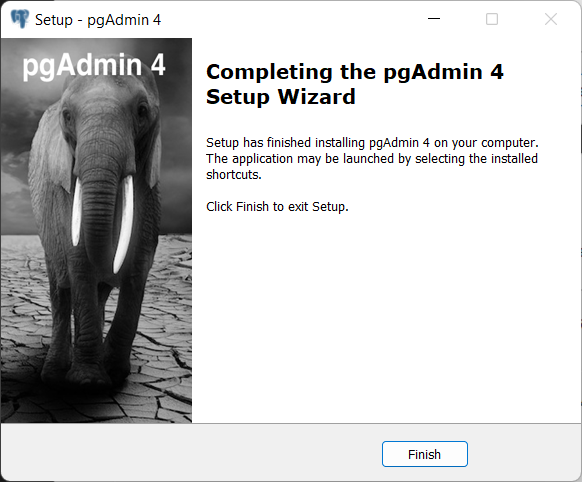
Installation Screens


Getting Started
- Open pgAdmin.
- When pgAdmin first opens, you may be prompted to set a password. Write this down and don't lose it!
- At first, you should see one server in the Browser tree (left sidebar). This server was created when you installed Postgres along with a database named
postgres. Click the server to select. You will be prompted for the password. Provide the superuser password you created when you installed Postgres. - To create a new database, drill down into the Browser tree and select the Databases (1) database cluster. In the Object menu, select Create > Database. A dialog box will appear. Provide a name and optionally, comment, and click Save.
You can now use pgAdmin to manipulate the database through its graphical user interface. You can also use either the Query Tool to write SQL statements or the PSQL Tool to use psql. If you receive the error Please configure the PostgreSQL Binary Path in the Preferences dialog, you must you must register the binary path for psql.
Tip
At first, pgAdmin can seem overwhelmingly complex. It's useful to understand the Postgres client/server model. pgAdmin is the client application; a server process, named postgres, manages operations on the database. A single server can manage multiple databases, referred to as a database cluster.
Click the help button for help with any dialog box. 
Common Workflows
Create a table
To create a new table, expand the Browser tree for the database to select Schemas > public. In the Object menu, select Create > Table (or right-click the Table item in the Browser tree). A dialog box will appear. Provide a name for the table under the General tab and the desired columns in the column tab.
Import CSV
pgAdmin provides a dialog utility for importing data from CSV. First create a table with the correct columns. Then, in the Browser tree, navigate to the table, right-click, and select Import/Export. If you receive the error Please configure the PostgreSQL Binary Path in the Preferences dialog, you must register the binary path for psql.
Import CSV from web
You can read a file directly from the web, avoiding the need to download the file locally. See instructions in psql.
Auto-incrementing ID field
- If the table already exists, open the table properties dialog box. If not, create a table.
- Edit the column by selecting the pencil icon.
- In the edit field dialog box, select the Constraints tab (not the Constraints tab at the top of the dialog box).
- Change the "Type" to "Identity" and change the "Identity" to "ALWAYS". The remaining fields will be filled automatically after you save, but you can edit them now if desired.
- Click Save.
Writing and saving SQL queries
A common workflow when developing SQL queries is to write the query in the Query Tool (Alt + Shift + Q) to draft the query and, once satisfied with the result, save the query to a .sql file. Store these files in a sql/ folder in the project repository. You can load the .sql file in the Query Tool for future use. For very common queries, you should instead create a view.
Register the binary path for psql
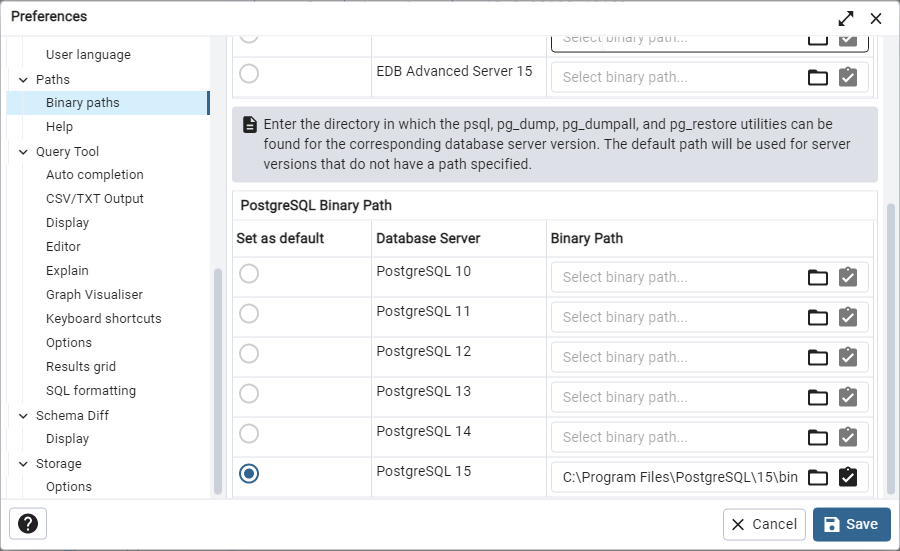
If you receive the error Please configure the PostgreSQL Binary Path in the Preferences dialog when using pgAdmin, you need to register the binary path for psql for the version of Postgres you are using.
- Open File > Preferences.
- Select Binary paths in the left sidebar.
- In the PostreSQL Binary Path table, identify the Database Server associated with your version of PostgreSQL and enter the directory in which the
psql,pg_dump,pg_dumpall, andpg_restoreutilities can be found for the corresponding database server version. If you have already registered [[psql]] to your PATH variable, you can usewhich psqlin a [[Bash]] session. For me, the correct path is
Select this version of PostgreSQL as the default.